

With Laman Connector, you can create and update microsites directly from Claude without opening the Dashboard. Just chat, Claude executes, and you can see the results instantly.
What is Laman Connector?
Connector is a feature in Claude that connects to Laman. With Connector:
- Claude can create new projects for you
- Claude can update existing code
- The entire process is automated, no manual work needed
Setting Up Laman Connector in Claude
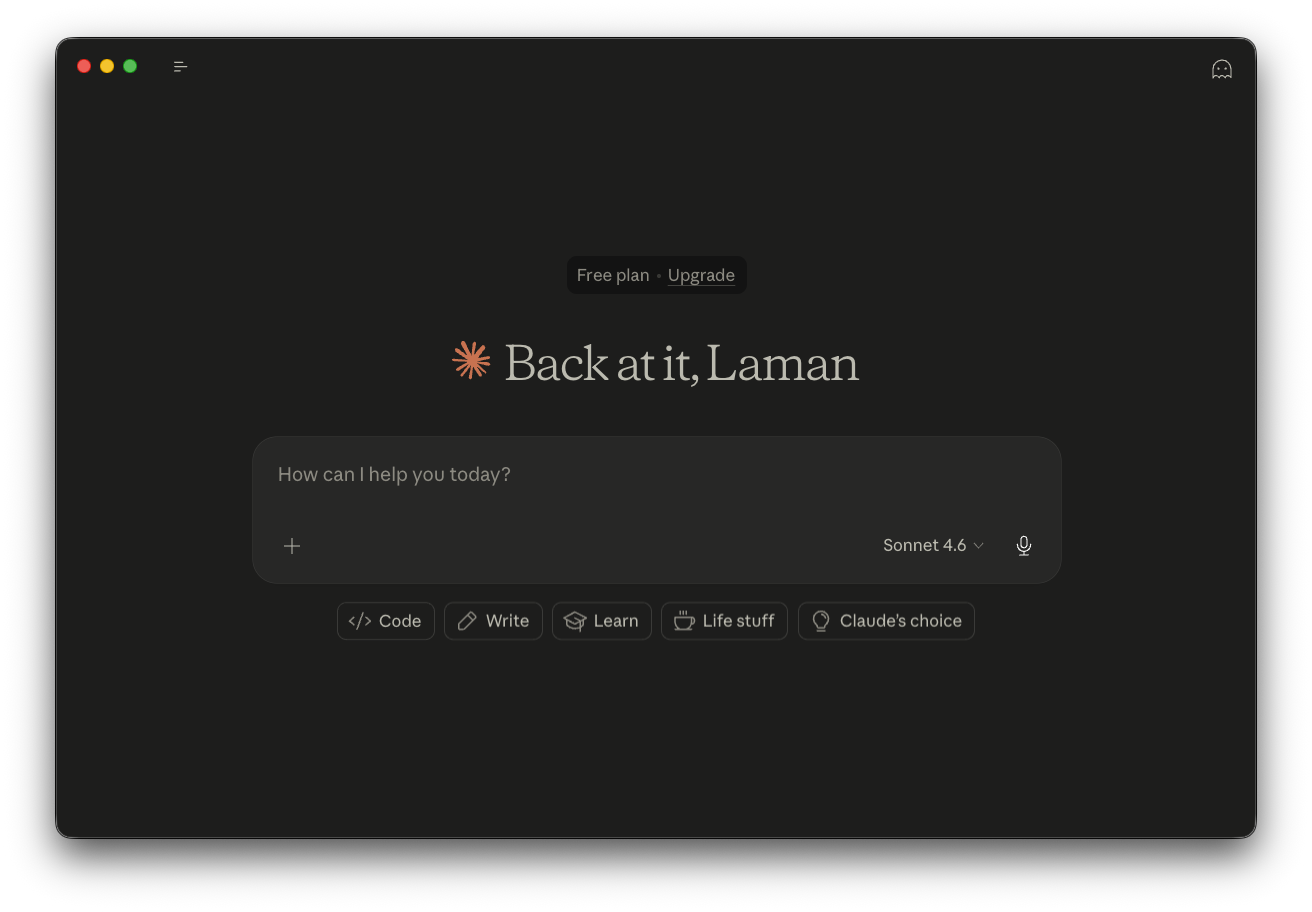
Step 1: Open Claude Desktop
Launch Claude Desktop on your computer.
Step 2: Access the Connectors Menu in Settings
- Go to "Settings" by clicking on your profile.
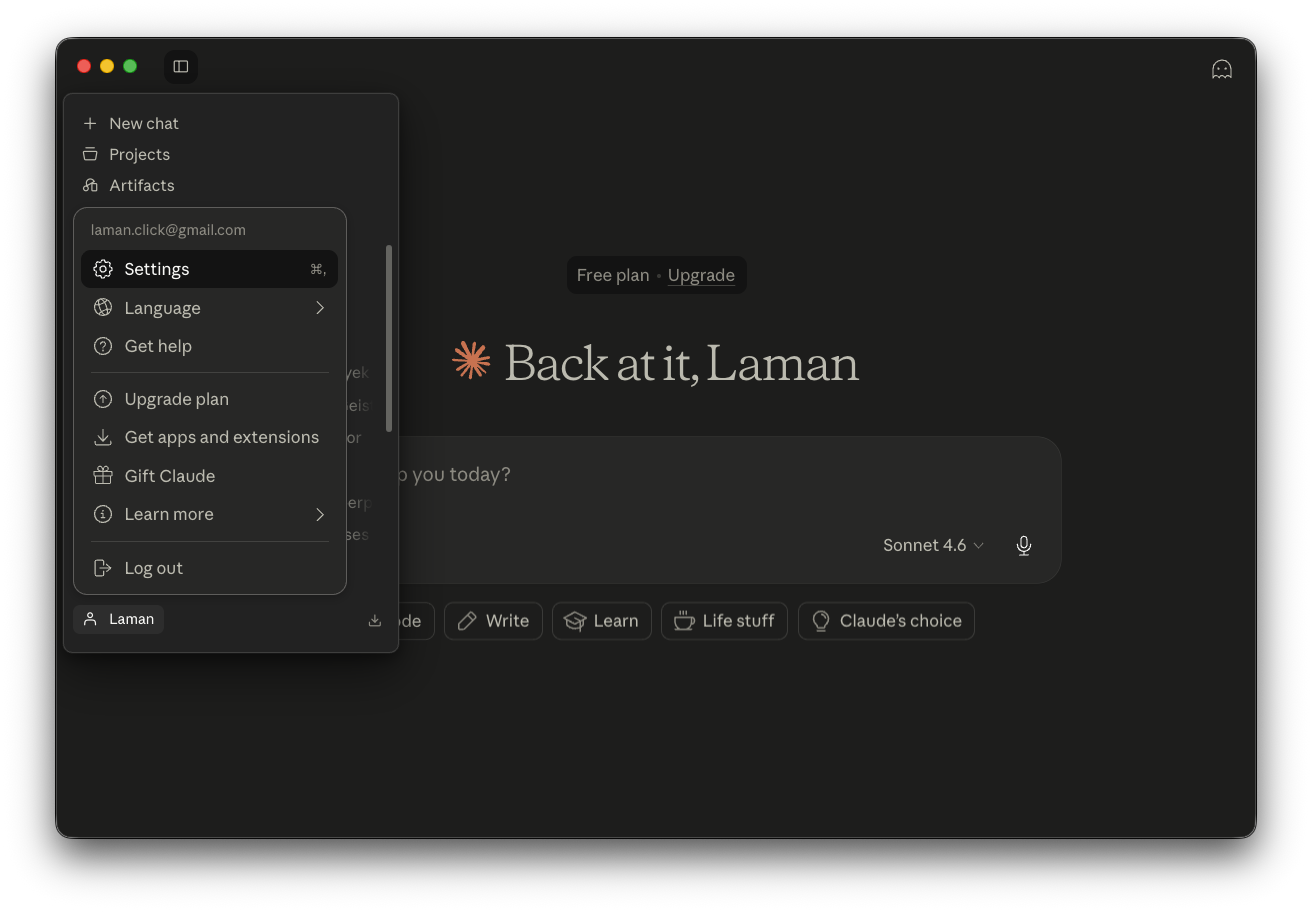
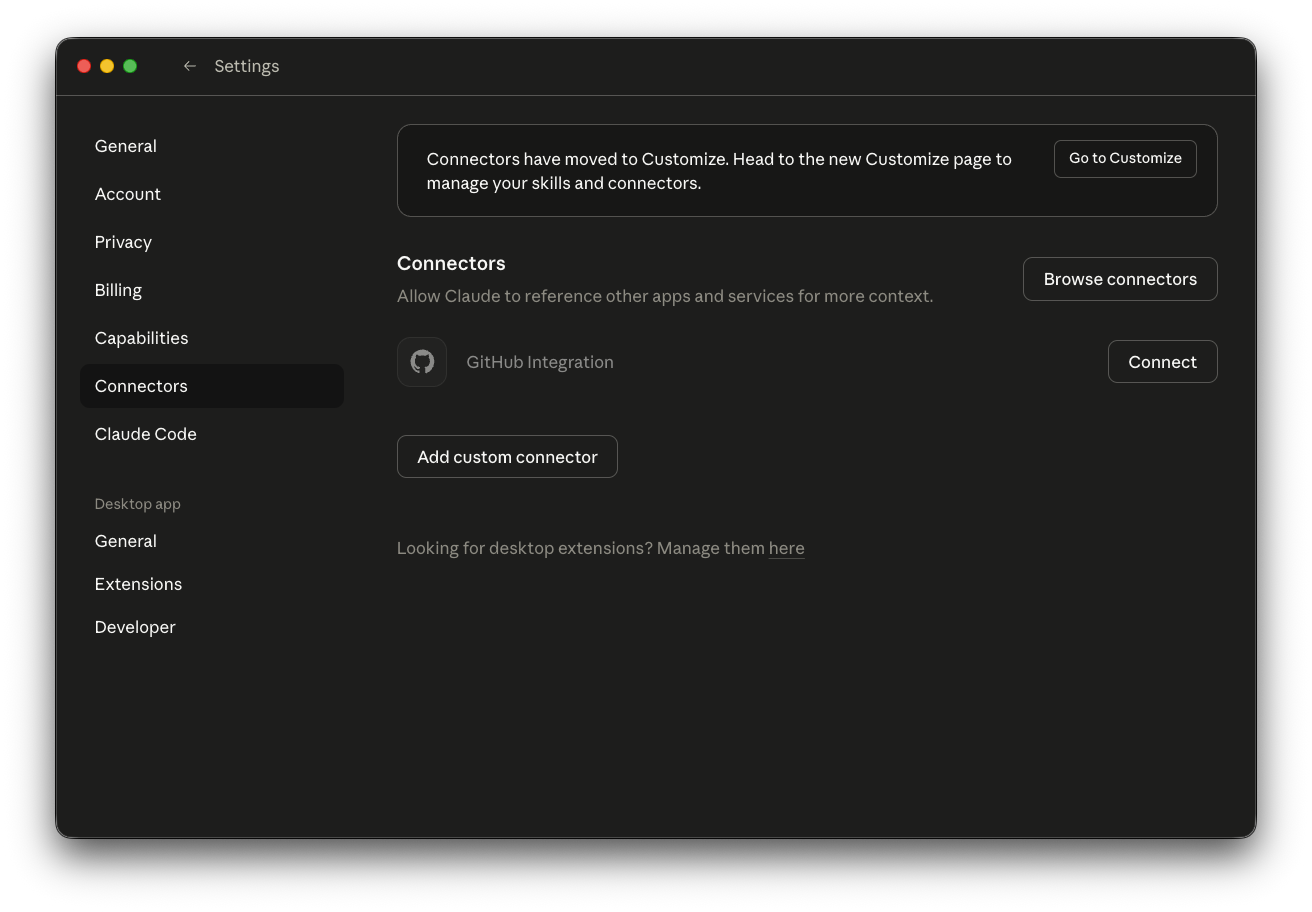
- Look for the "Connectors" menu.
Step 3: Add Laman Connector
On the Connectors page:
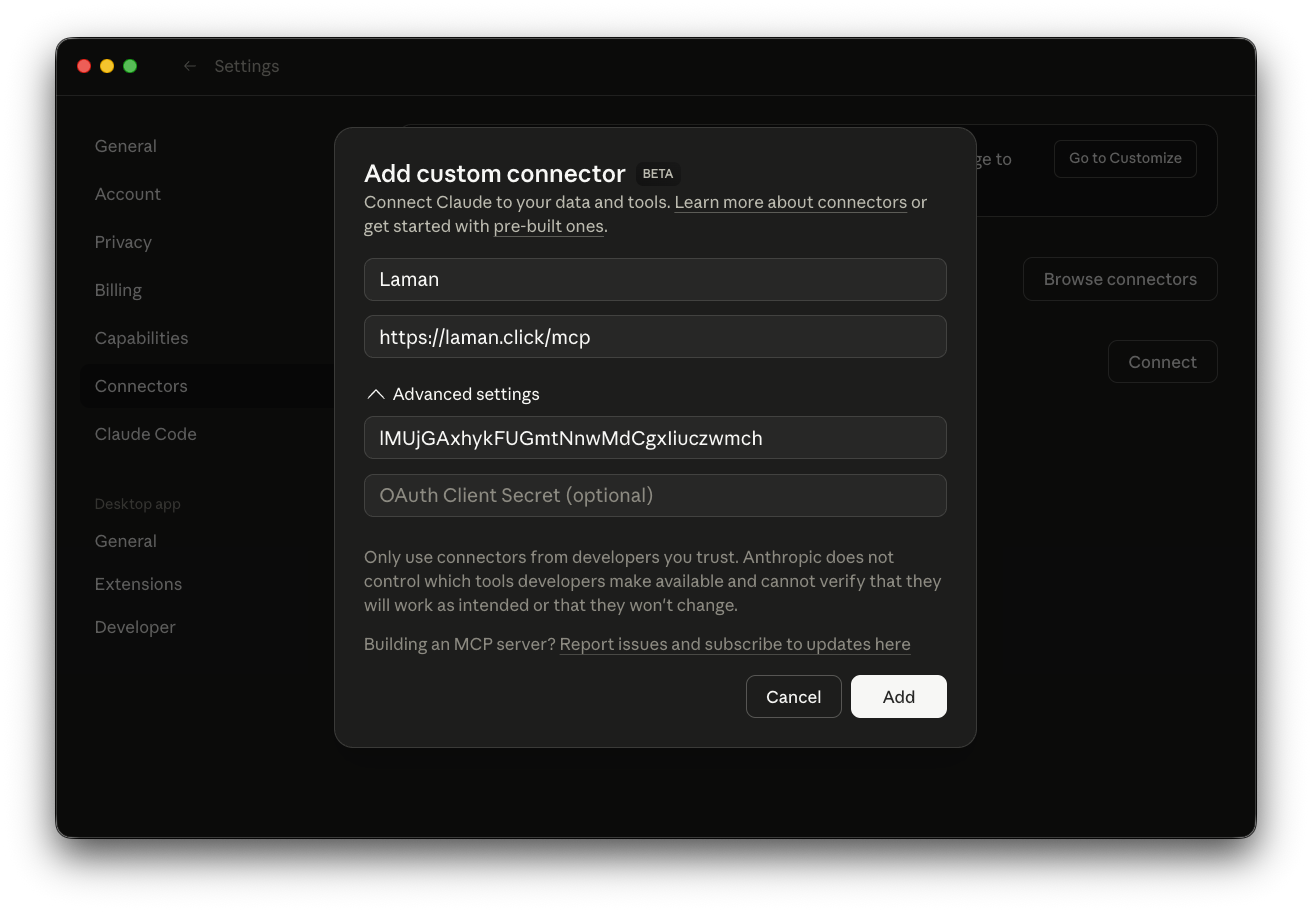
- Click the "Add Custom Connector" button.
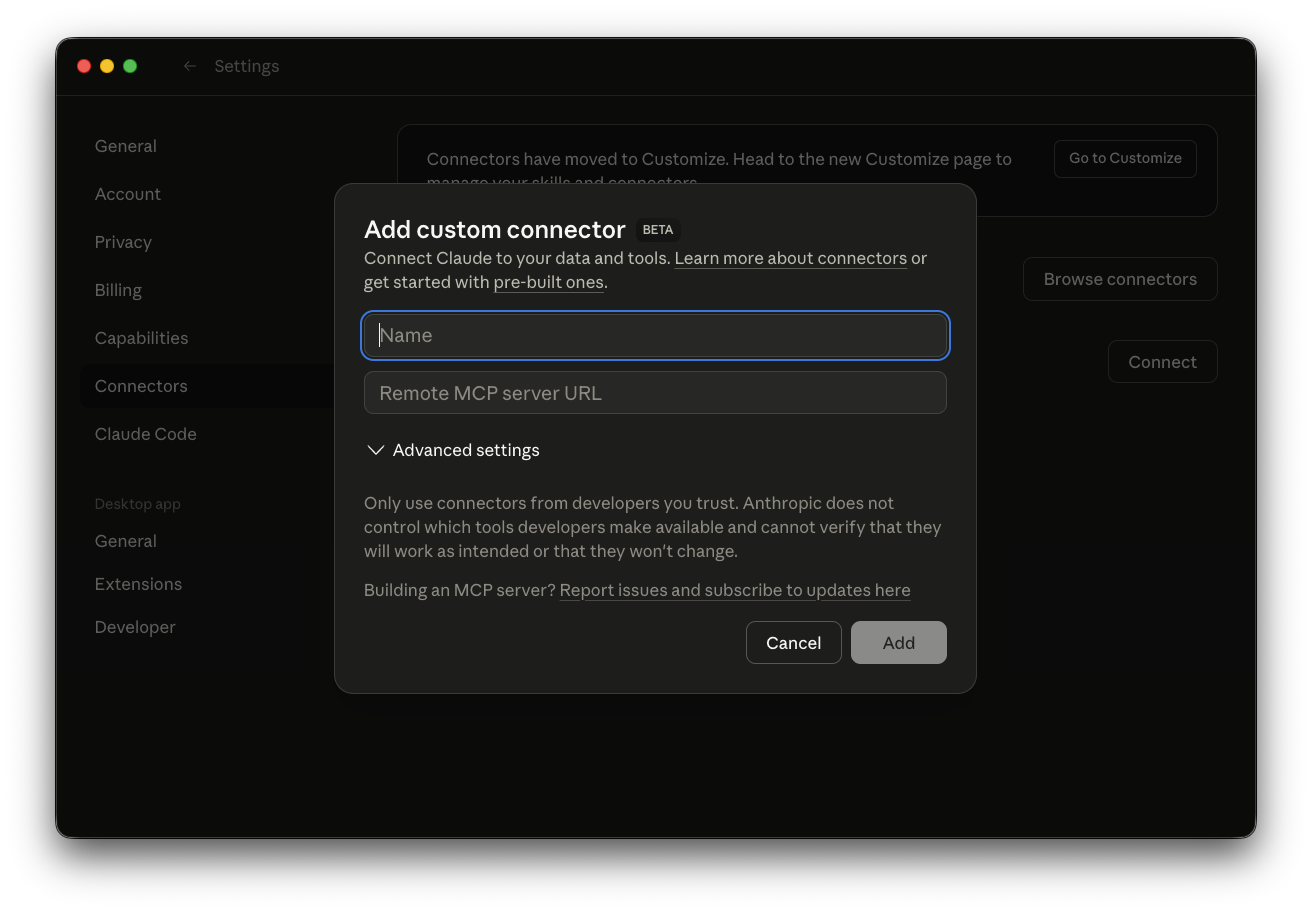
- A form will appear with several fields:
Enter the following information:
- Name:
Laman - Server URL:
https://laman.click/mcp - Client ID:
lMUjGAxhykFUGmtNnwMdCgxIiuczwmch
- Click the "Add" button to proceed.
Step 4: Login to Laman to Connect the Connector
A browser window will open:
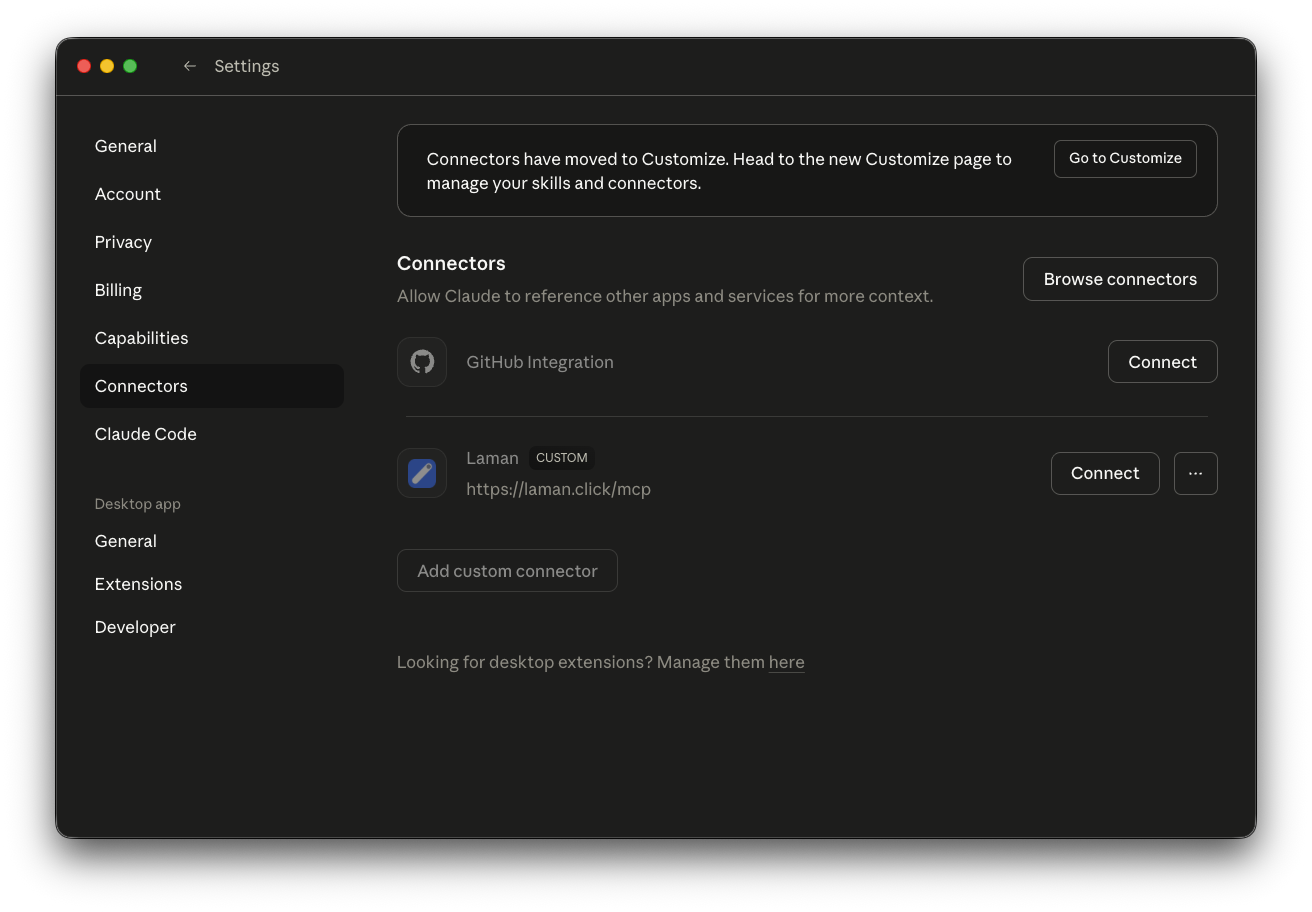
- After entering the Laman Connector details, the next step is to connect it to the Laman server by clicking the "Connect" button.
- Log in with your Laman account (Google or X)
- Authorize the connector to access your Laman account
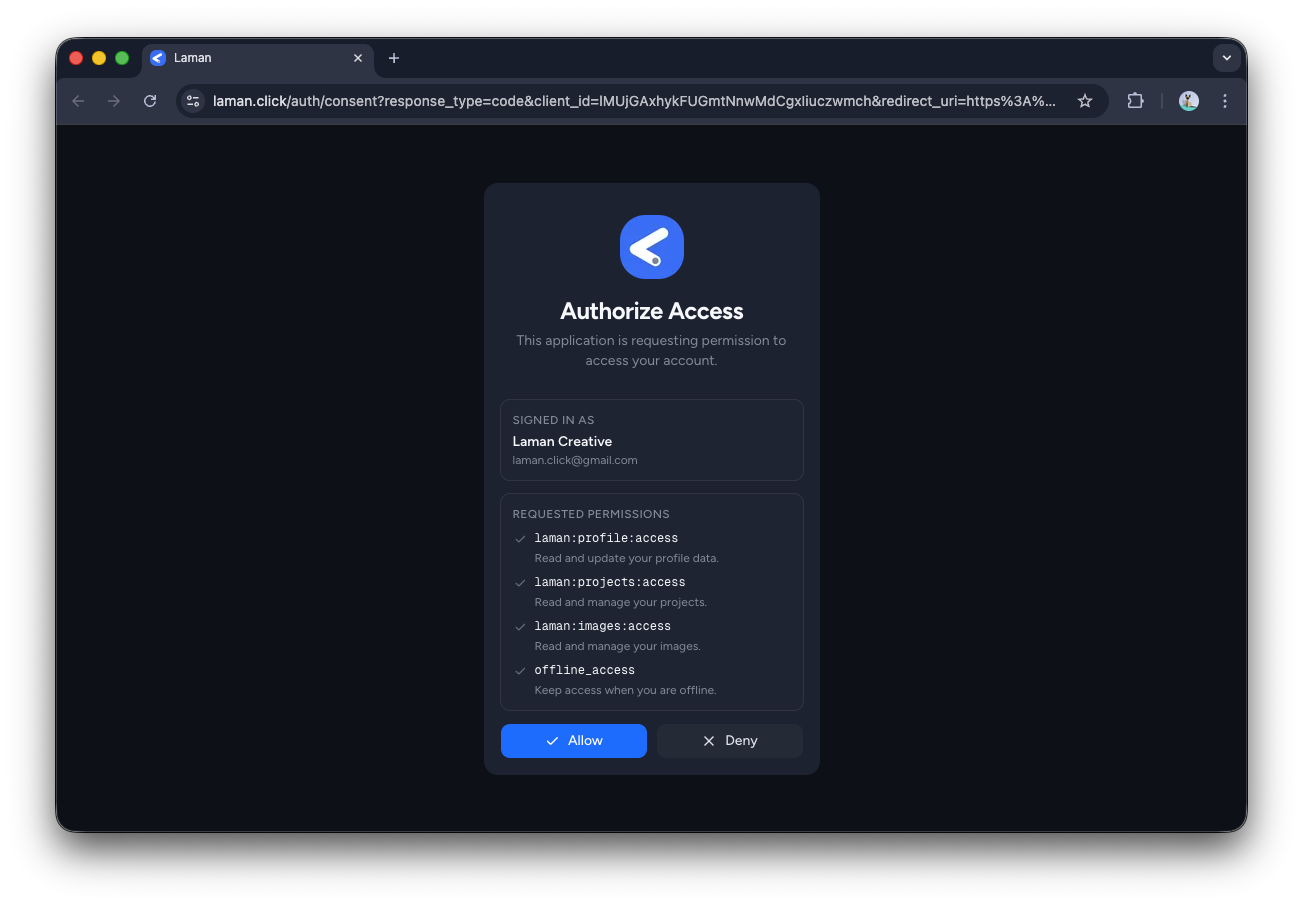
- Once successful, the browser will redirect you back to Claude.
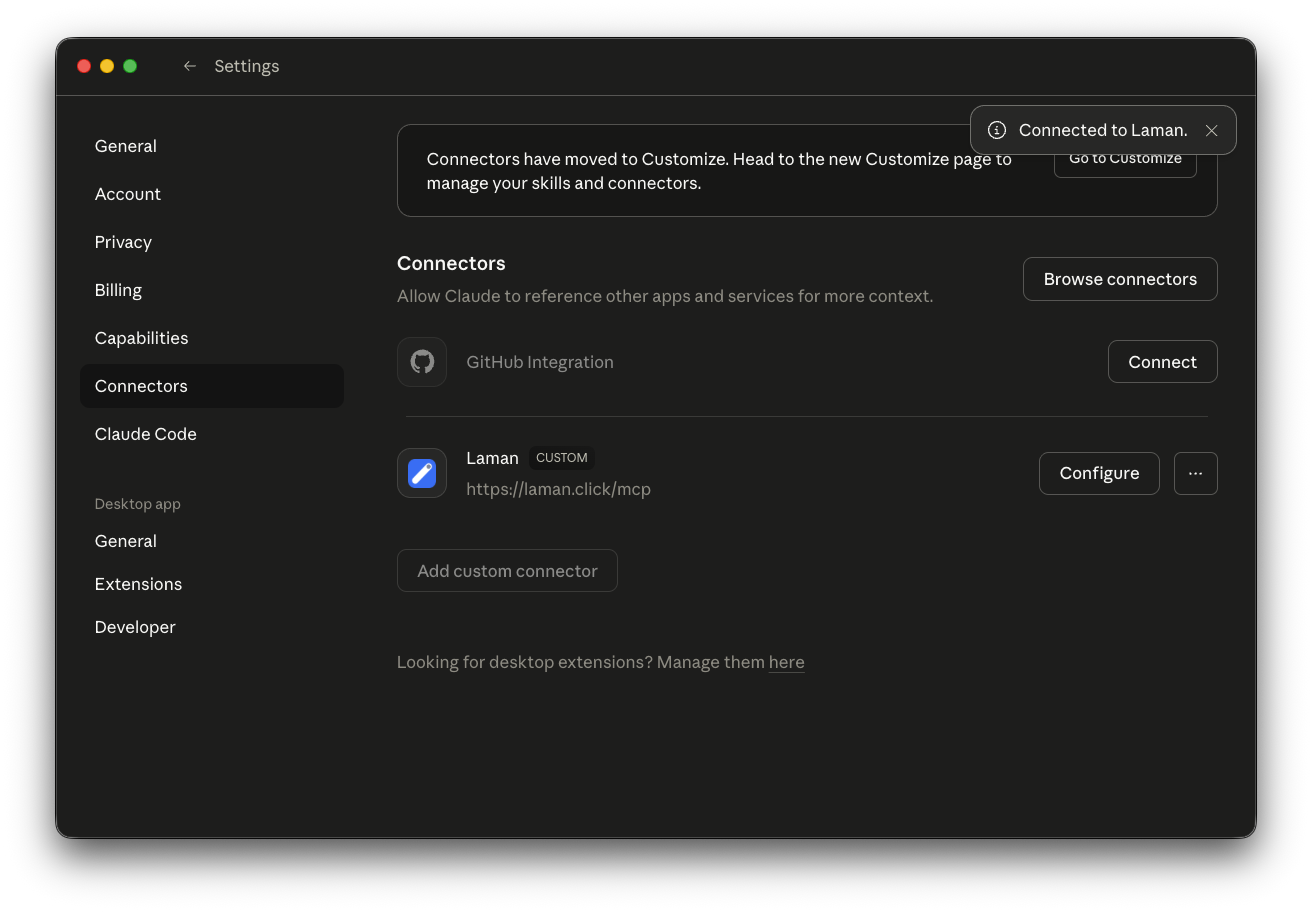
Step 5: Verify the Connector is Active
Return to Claude:
- Close the Settings menu and return to the Chat menu.
- In the input area, click the connector icon (puzzle shape).
- Select Laman to activate it.
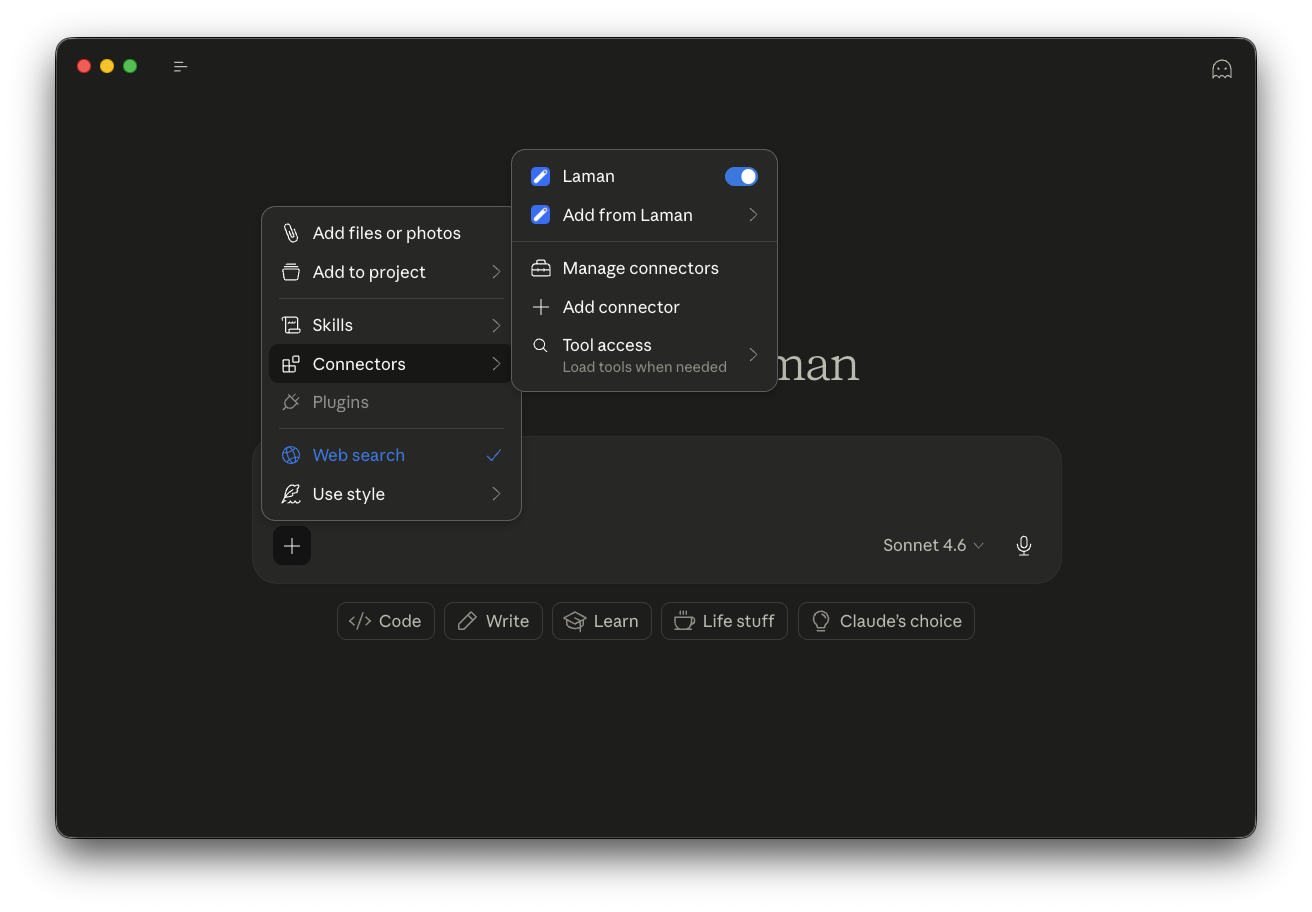
The Connector is now ready to use!
Using the Connector to Create a Project
Now you can chat with Claude to create a project. Make sure the Laman Connector is active before sending your prompt.
Example Prompt 1: Create a New Link-in-Bio
Create a link-in-bio page named “My Creator Bio”.
Include:
- Profile card with name, and short bio
- Link buttons for Instagram, TikTok, YouTube
- Blue color, modern minimalist design, mobile responsive
- Dark mode option
Use Laman and give me link
Claude will create your project and return a live link.
Example Prompt 2: Update a Project
Update "My Creator Bio" - change the gradient color to purple-pink and make the profile card larger.
Claude will update it directly; refresh your browser to see the changes.
Why the Connector is Powerful
- Super fast — Go from idea to live in just minutes
- Easy updates — Just chat for any changes you want
- Stay flexible — You can still fine-tune in the Dashboard if needed
- Accessible to everyone — No technical skills required, just describe what you need